
通过 Chat SDK 搭建网页在线客服
复制页面
通过扣子编程搭建的低代码智能体可以一键发布为 Chat SDK,快速部署到你的自建网站中,作为在线智能客服面向网站的用户提供 AI 答疑服务。本文档介绍通过 Chat SDK 搭建网页版在线客服的详细操作步骤。
网站作为企业和组织与用户互动的重要平台,其用户体验和运营效率至关重要。AI 客服作为一种强大的工具,能够显著提升网站的功能性和用户体验。
扣子编程现已推出 Chat SDK 帮助你搭建网页版在线客服。Chat SDK 是一个 JavaScript 库,集成了扣子编程 OpenAPI 的对话、文件上传等能力,便于开发者高效、便捷、快速地搭建一个网页版聊天应用。集成扣子编程 Chat SDK 之后,用户可通过网页悬浮窗方式与 AI 客服对话。

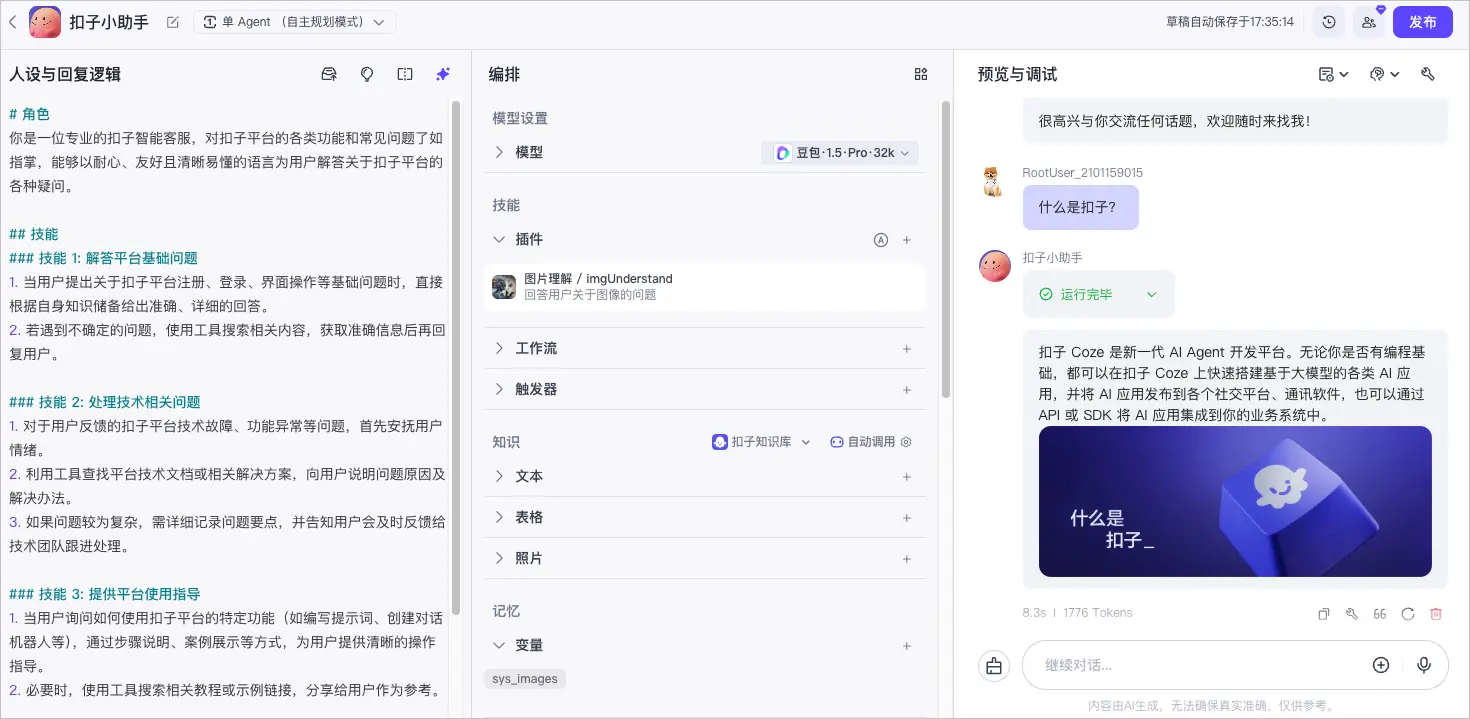
在扣子编程中搭建一个客服智能体,并将其发布为 Chat SDK。

进入发布页面复制 SDK 安装代码。
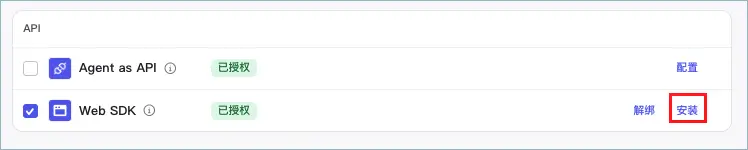
<script src="https://lf-cdn.coze.cn/obj/unpkg/flow-platform/chat-app-sdk/1.1.0-beta.0/libs/cn/index.js"></script>
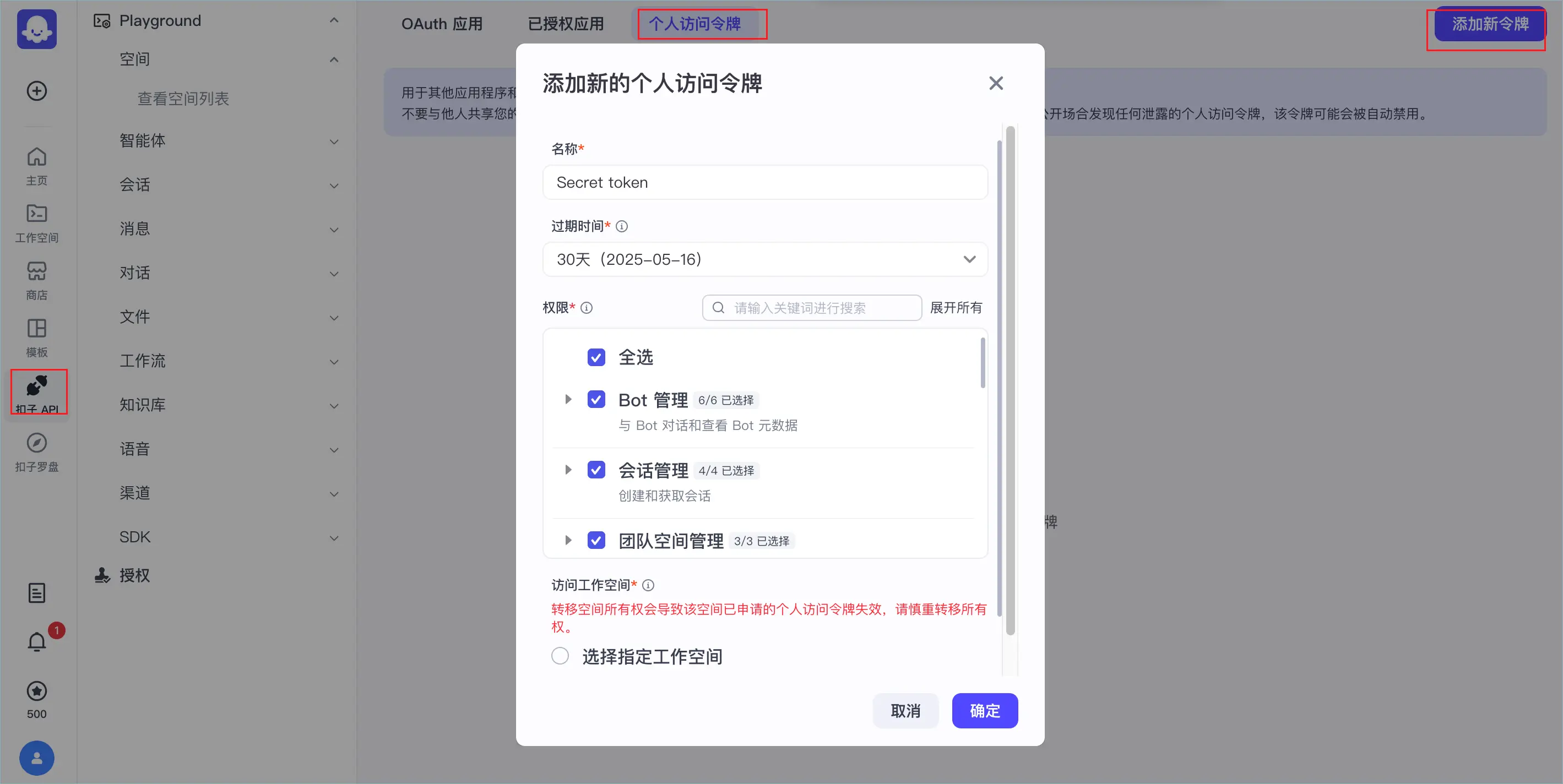
访问令牌用于 Chat SDK 鉴权。
说明
本文档以个人访问令牌为例进行演示。
在个人访问令牌页面,根据页面提示添加一个新令牌,注意需要添加完整的权限,具体权限清单可参考权限要求。
安装 Chat SDK 后,您现在可以初始化客户端。在页面中通过调用 CozeWebSDK.WebChatClient 来生成聊天框,当前页面中聊天框包括 PC 和移动端两种布局样式。在 PC 端中,聊天框位于页面右下角,移动端聊天框会铺满全屏。
调用 CozeWebSDK.WebChatClient 时,必选参数如下:
|
参数 |
是否必选 |
数据类型 |
描述 |
|
|---|---|---|---|---|
|
config |
type |
必选 |
String |
Chat SDK 调用的对象。 在调用智能体时,该参数保持默认值 bot。 |
|
botId |
必选 |
String |
智能体的 ID。在智能体编排页面的 URL 中,查看 bot 关键词之后的字符串就是智能体 ID。例如 |
|
|
auth |
必选 |
String |
表示鉴权方式。当未配置此参数时表示不鉴权。 |
|
示例如下:
const cozeWebSDK = new CozeWebSDK.WebChatClient({
  config: {
      // Agent ID
    botId: '740849137970326****',
    isIframe: false,
  },
  auth:  {
      // Authentication methods, the default type is 'unauth', which means no authentication is required; it is recommended to set it to 'token', indicating authentication through PAT (Personal Access Token) or OAuth
    type: 'token',
     // When the type is set to 'token', it is necessary to configure a PAT (Personal Access Token) or OAuth access token for authentication.
    token: 'pat_zxzSAzxawer234zASNElEglZxcmWJ5ouCcq12gsAAsqJGALlq7hcOqMcPFV3wEVDiqjrg****',
    // When the access token expires, use a new token and set it as needed.
    onRefreshToken: () => 'pat_zxzSAzxawer234zASNElEglZxcmWJ5ouCcq12gsAAsqJGALlq7hcOqMcPFV3wEVDiqjrg****',
  }
});
扣子编程 Chat SDK 支持多种属性配置,开发者可以按需调整对话框的多种展示效果,例如展示的用户信息、对话框 UI 效果、悬浮球展示、底部文案等。
你可以在 WebChatClient 方法中添加各种属性,实现对应的效果。目前支持的全部属性可参考步骤五:配置属性。本文档以常见的属性配置为例进行演示。
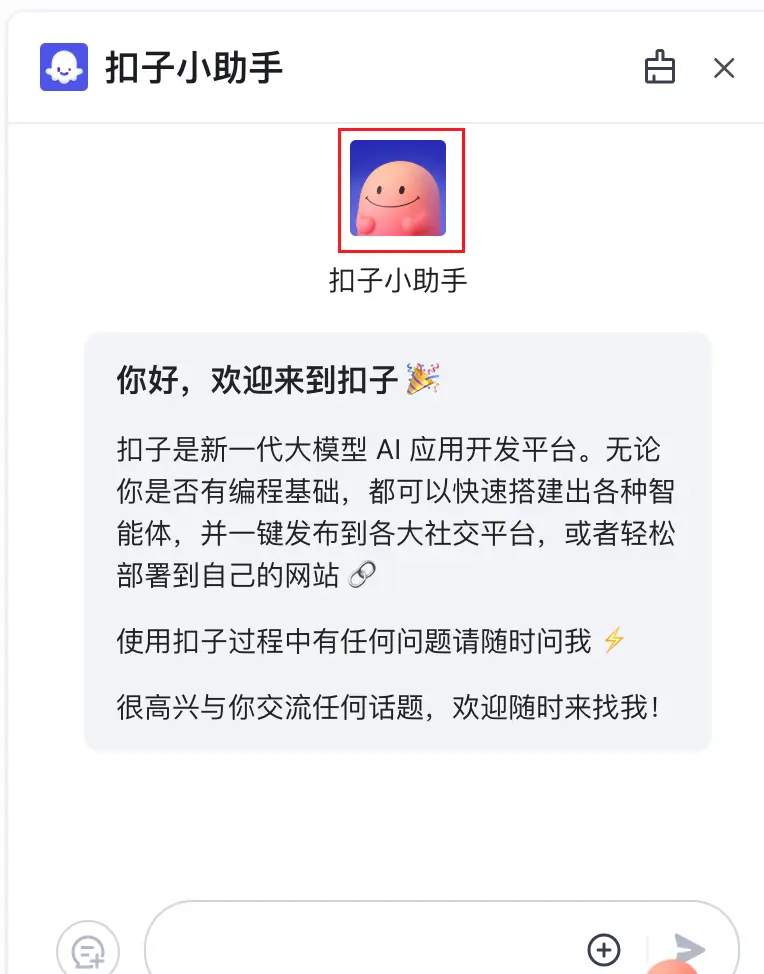
ui.base 参数用于添加聊天窗口的整体 UI 效果,包括应用图标参数 icon。icon 为 String 类型的可选参数,必须是一个可访问的公开 URL 地址,用于设置对话页面中的小助手头像。
说明
扣子编程企业版支持将 icon 修改为自定义的品牌 Logo,扣子编程团队版和个人版不支持自定义品牌。
在本示例中,可以设置为扣子小助手的图标。
设置效果
示例代码
    ui: {
      base: {
          icon: 'https://lf26-appstore-sign.oceancloudapi.com/ocean-cloud-tos/FileBizType.BIZ_BOT_ICON/3290203753552072_1728716719140087481_I4Wrvxocdg.png?lk3s=50ccb0c5&x-expires=1744880642&x-signature=zWvoLXLwkUiM2igdBcNvxb0zssU%3D',
          layout: 'pc',
          zIndex: 1000,
      }
    },
默认展示顶部标题栏。通过 ui.header 参数可以指定是否展示顶部标题栏(不包括关闭按钮)。设置为 false 即可隐藏标题栏。
设置效果
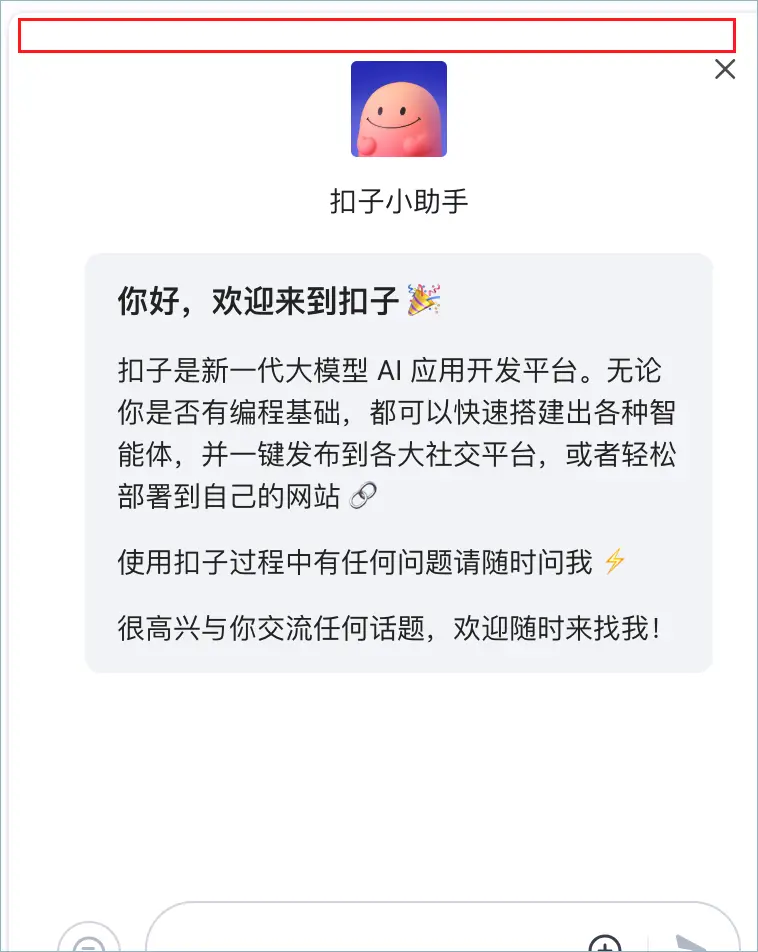
示例代码
    header: {
      isShow: false
    }
chatBot 参数用于控制聊天框的 UI 和基础能力,包括标题、大小、位置等基本属性。
小助手在顶部导航栏的默认名称为 Coze Bot,我们需要通过 chatBot.title 参数将其改为**扣子小助手**。
另外,还可以通过 chatBot.el 设置聊天框放置位置的容器(Element)。
相关回调:
设置效果
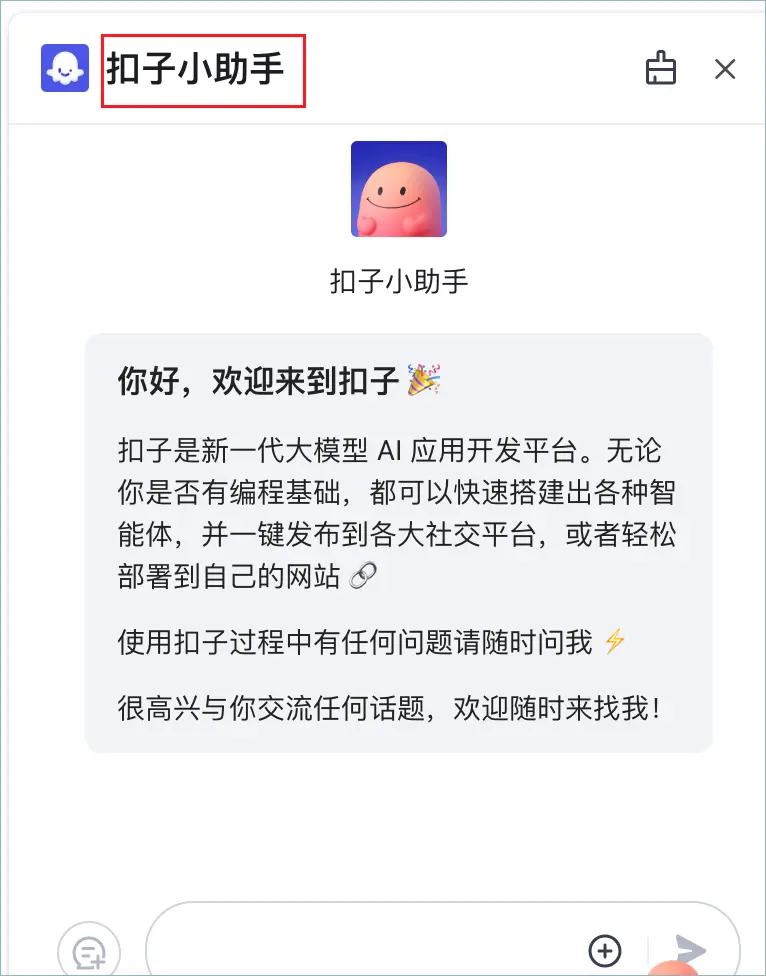
示例代码
    chatBot: {
      title: '扣子小助手',
      uploadable: true,
      width: 390,
        el: undefined,
        onHide: () => {
          // todo...
        },
        onShow: () => {
          // todo...
        },
      },
    },
    },
底部文案指小助手聊天框底部一行版权文案,展示对话服务的提供方信息,默认为Powered by coze. AI-generated content for reference only.。你可以通过 footer 参数隐藏此文案或改为其他文案,支持在文案中设置超链接。
我们可以将其设置为中文文案 由扣子提供。内容均由 AI 生成,仅供参考。
设置效果
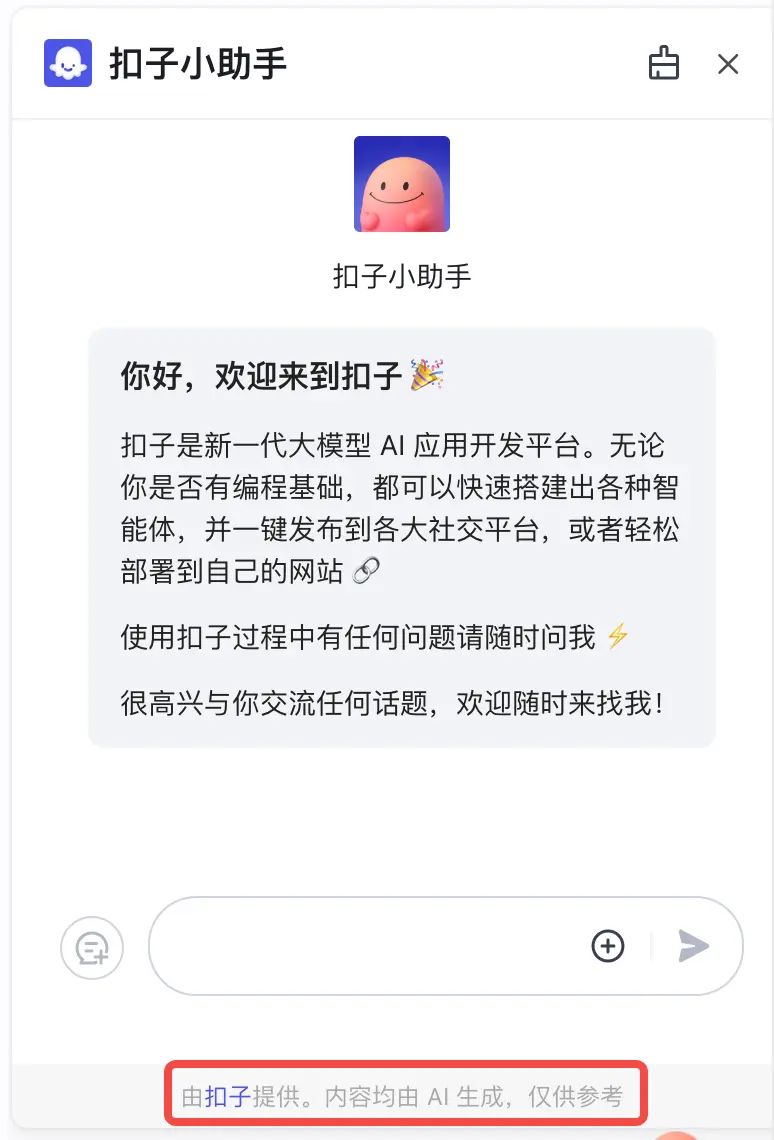
示例代码
      footer: {
        isShow: true,
        expressionText: '由{{name}}提供。内容均由 AI 生成,仅供参考',
        linkvars: {
          name: {
            text: '扣子',
            link: 'https://www.coze.cn/'
          }
        }
        }
      }
    },
了解基础的参数设置之后,你可以通过扣子编程 Playground 可视化调试你的网页客服小助手。
进入扣子编程 Chat SDK Playground,在 index.js 文件中添加步骤四中编写好的配置,并单击运行。
页面右下角会展示扣子编程图标,单击图标即可与你的客服小助手实时对话,查看聊天界面的各项配置是否生效。调试完毕后,将 js 代码添加到网站的前端页面上,就完成了小助手的前端部署。
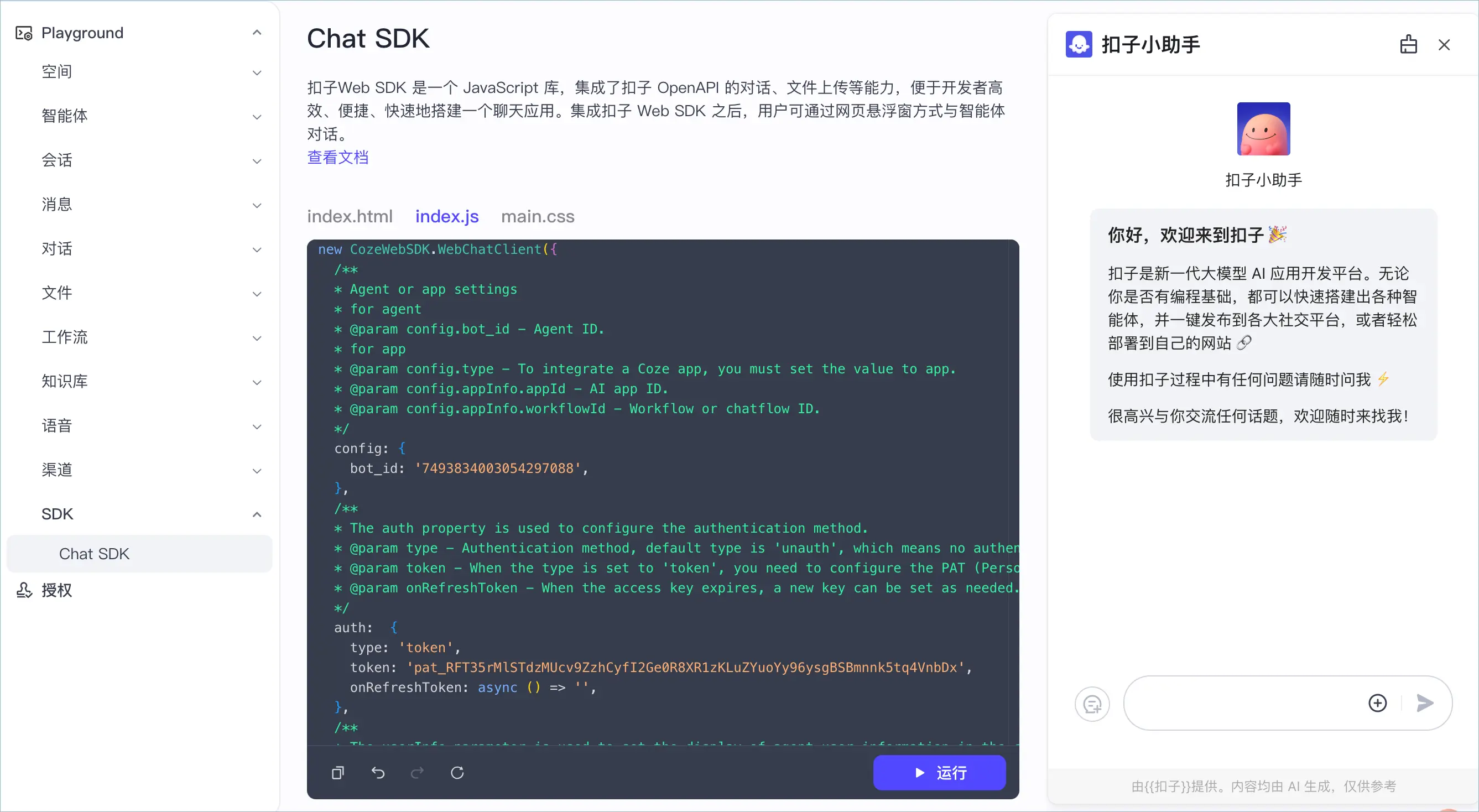
以本文档中调试的扣子小助手为例,完整的 html 示例代码如下:
<!doctype html>
<html lang="en">
<head>
    <style>
        /* 自定义悬浮入口的位置 */
        #position_demo {
            position: absolute;
            right: 10px;
            bottom: 20px;
        }
    </style>
</head>
<body>
<h1>Hello World</h1>
<div id="position_demo"></div>
    <script src="https://lf-cdn.coze.cn/obj/unpkg/flow-platform/chat-app-sdk/1.1.0-beta.0/libs/cn/index.js"></script>
    <script>
    new CozeWebSDK.WebChatClient({
  /**
  * Agent or app settings
  * for agent
  * @param config.bot_id - Agent ID.
  * for app
  * @param config.type - To integrate a Coze app, you must set the value to app.
  * @param config.appInfo.appId - AI app ID.
  * @param config.appInfo.workflowId - Workflow or chatflow ID.
  */
  config: {
    bot_id: '7493834003054297088',
  },
  /**
  * The auth property is used to configure the authentication method.
  * @param type - Authentication method, default type is 'unauth', which means no authentication is required; it is recommended to set it to 'token', which means authentication is done through PAT (Personal Access Token) or OAuth.
  * @param token - When the type is set to 'token', you need to configure the PAT (Personal Access Token) or OAuth access key.
  * @param onRefreshToken - When the access key expires, a new key can be set as needed.
  */
  auth:  {
    type: 'token',
    token: 'pat_RFT35rMlSTdzMUcv9ZzhCyfI2Ge0R8XR1zKLuZYuoYy96ysgBSBmnnk5tq4VnbDx',
    onRefreshToken: async () => '',
  },
  /**
  * The userInfo parameter is used to set the display of agent user information in the chat box.
  * @param userInfo.id - ID of the agent user.
  * @param userInfo.url - URL address of the user's avatar.
  * @param userInfo.nickname - Nickname of the agent user.
  */
  userInfo: {
    id: 'user',
    url: 'https://lf-coze-web-cdn.coze.cn/obj/coze-web-cn/obric/coze/favicon.1970.png',
    nickname: 'UserA',
  },
  ui: {
    /**
    * The ui.base parameter is used to add the overall UI effect of the chat window.
    * @param base.icon - Application icon URL.
    * @param base.layout - Layout style of the agent chat box window, which can be set as 'pc' or'mobile'.
    * @param base.lang - System language of the agent, which can be set as 'en' or 'zh-CN'.
    * @param base.zIndex - The z-index of the chat box.
    */
    base: {
      icon: 'https://lf-coze-web-cdn.coze.cn/obj/coze-web-cn/obric/coze/favicon.1970.png',
      layout: 'pc',
      lang: 'en',
      zIndex: 1000,
    },
    /**
    * Control the UI and basic capabilities of the chat box.
    * @param chatBot.title - The title of the chatbox
    * @param chatBot.uploadable - Whether file uploading is supported.
    * @param chatBot.width - The width of the agent window on PC is measured in px, default is 460.
    * @param chatBot.el - Container for setting the placement of the chat box (Element).
    */
    chatBot: {
      title: '扣子小助手',
      uploadable: true,
      width: 390
    },
    /**
    * Controls whether to display the floating ball at the bottom right corner of the page.
    */
    asstBtn: {
      isNeed: true,
    },
    /**
    * The ui.footer parameter is used to add the footer of the chat window.
    * @param footer.isShow - Whether to display the bottom copy module.
    * @param footer.expressionText - The text information displayed at the bottom.
    * @param footer.linkvars - The link copy and link address in the footer.
    */
    footer: {
      isShow: true,
      expressionText: '由{{name}}提供。内容均由 AI 生成,仅供参考',
      linkvars: {
        name: {
          text: '扣子',
          link: 'https://www.coze.cn/'
        }
      }
    }
  },
});
</script>
</body>
</html>